Jobs this engine is set up for
Every route below is the same engine under different parameters.
- Compress pictureRe-encode a picture to fewer bytes at the same pixel dimensions, and read what it cost.
 Compress image to KBType the cap the form gave you; the largest file under it, or a straight answer.
 Photo size in KB for formsPick the exam or service: sourced pixels, range and format, then a pre-upload check.
 Resize signature in KBInk cleaned, straightened and cropped, then fitted to the field's KB range.
 Photo resizer in KBWidth × height, or cm at a DPI, and a KB cap — solved together, pixels first.
 Check image size in KBExact bytes, pixels, DPI and real format, read from the file.
 Reduce image resolutionFewer pixels by long edge, percent or megapixels, with the bytes measured.
 Remove metadata from photoEXIF and GPS removed without re-encoding, pixels verified identical.
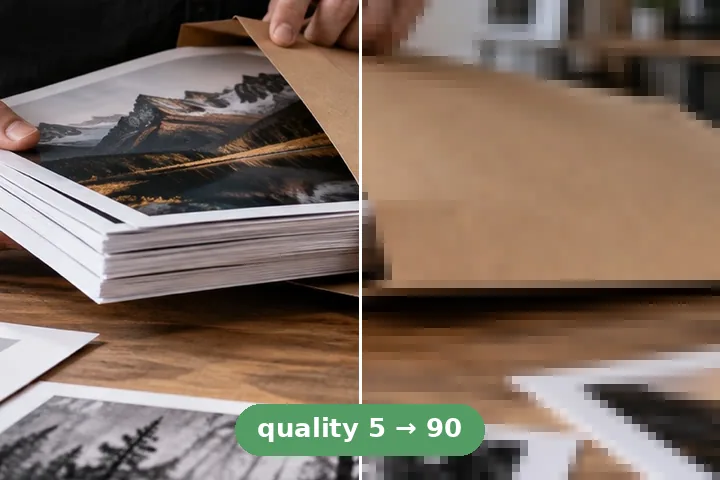 Compress JPEGThe quality scale, what each step quantises away, and where the floor is.
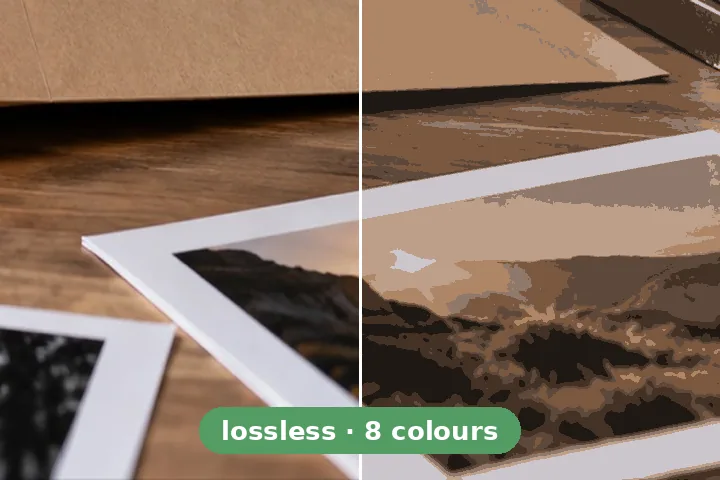 Compress PNGA lossless re-deflate and a palette reduction, kept apart.
 Compress WebPA verified WebP encode with measured bytes at the same dimensions.
 Batch compressUp to 100 files, one rule, one ledger row each, one ZIP.
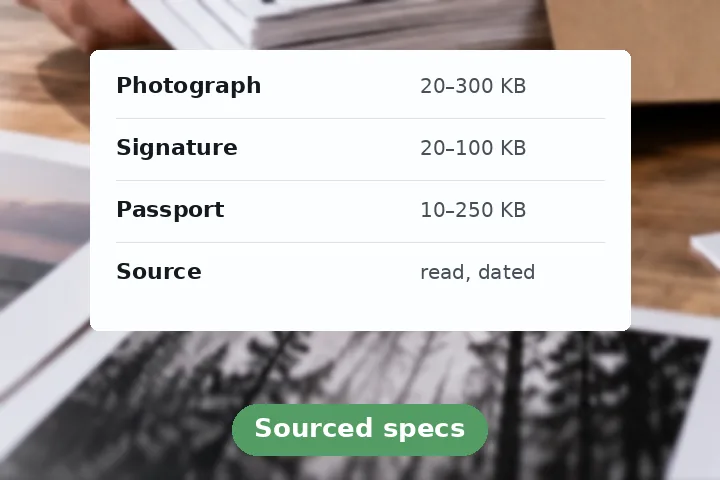 Photo and signature sizesEvery Indian form spec here, with its source and the date it was read.
What a cap costs, at 400%
Both panes are the same file at 400%, because at this cap there is nothing to see between them at 100% and little enough here. The two figures are the run printed below, measured by this build's own search — not an estimate, and not a photograph of one.
One file, start to finish
A 261 KB photograph, a 50 KB cap, and the eight encodes in between
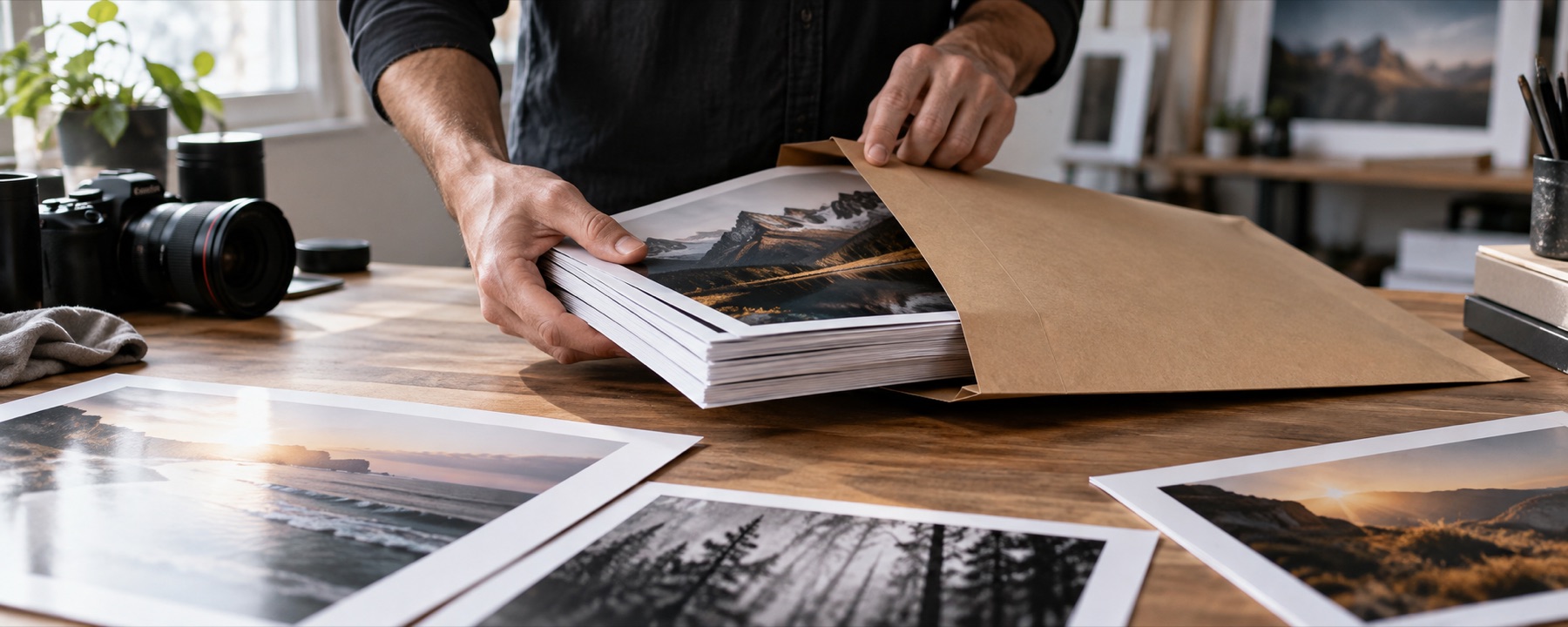
The picture at the head of this page is 1800 × 720 and weighs 261 KB. Given a 50 KB cap, the search starts at the format's floor — if even quality 5 overshoots you know that after one encode rather than after eight — and then climbs, keeping the largest file that still fits.
The target search
| # | Setting | Bytes | Cap |
|---|---|---|---|
| 1 | quality 5 | 30.2 KB | under |
| 2 | quality 53 | 96.7 KB | over |
| 3 | quality 29 | 68.7 KB | over |
| 4 | quality 17 | 51.9 KB | over |
| 5 | quality 11 | 41.7 KB | under |
| 6 | quality 14 | 46.9 KB | under |
| 7 | quality 15 | 48.6 KB | under |
| 8 | quality 16 | 50.1 KB | over |
| Kept — quality 15 | 48.6 KB | −81% |
Quality 16 is 50.1 KB and a 50 KB field rejects it, so quality 15 is the answer and the tool keeps it. Byte figures here come from a recorded run of this exact ladder; your browser writes its own JPEG and will land within a kilobyte or so of each row.
The receipt
Re-encoding rebuilds the file from pixels, so everything in it that was not a pixel is gone: the capture date, the GPS fix, the maker notes, the embedded preview, the colour profile. Open a file above and the tool itemises those blocks and what each one weighed before you press anything, with a total at the foot — the saving is never presented as a single number you have to take on trust.
The ICC row carries the one warning that matters. A profile is not decoration: dropping the Display P3 profile off a photograph does not preserve the colours it described, and a picture that looked right on the phone that took it can come back flat.
What gets stripped, and what it costs goes through the blocks one at a time.
What compression takes away
A JPEG is stored as blocks of eight pixels by eight, each turned into a set of frequency coefficients, each coefficient divided by a number from a quantisation table and rounded. The quality setting chooses that table. Rounding is where the bytes go, and what it rounds away is the fine end of the picture: the edge of small text, single-pixel highlights, film grain, the texture of skin. None of it comes back on the way out.
A PNG works the other way round. Nothing is discarded unless you ask for it: the lossless pass encodes the picture under more than one row filter, keeps whichever attempt came out shortest, and hands back pixels that are bit-for-bit the pixels that went in. Ask for a palette instead and every pixel is remapped to the nearest of the colours you allowed, which is why a screenshot survives it and a sunset does not.
Neither mechanism changes how big the picture is. A 4032 by 3024 photograph that leaves here at 180 KB is still 4032 by 3024 — though read that figure for what it is: twelve million pixels carrying about one byte for every sixty-six of them, which is a hard squeeze and a visible one, not a free result you should expect on every file. Dimensions surviving is the whole promise of this page, and it is the reason the one operation that would change them — reducing the long edge when a cap is out of reach — is a question rather than a step.
This tool keeps almost none of your metadata.
The re-encode rebuilds the file from pixels, so EXIF, GPS, the maker notes, the embedded thumbnail, IPTC, XMP and the ICC profile all go, together, every time. The Metadata panel lists each block and what it weighed so you can see what the saving was made of. The one thing that can come back is a JPEG's capture date, artist and copyright fields, written into a fresh EXIF block when you choose “Keep date & credit” — never GPS, never the camera's serial, never the thumbnail. Anything beyond those three needs a different tool.
The JPEG encoder here is the browser's own.
There is no MozJPEG-class codec in this build, which means no trellis quantisation, no choice of chroma subsampling and no progressive scan script. A dedicated encoder of that class usually writes a somewhat smaller file at the same visual quality; how much smaller depends on the picture, and this site has not measured it, so no figure is quoted here. What you gain instead is that nothing is uploaded and nothing is installed.
The pass, step by step
- 1The file is read from disk by this page. Its first megabyte is walked segment by segment for metadata blocks, and each block's length is added up — that is where the itemised figures in the ledger come from.
- 2Orientation is resolved once. The browser is tested with a two-pixel JPEG that carries a rotation flag, and the rotation is applied by hand only if the browser did not already apply it, so a phone photograph never comes out sideways or twice-rotated.
- 3You choose the mechanism: a quality, a byte cap, or a percentage off. The picture is encoded at quality 80 the moment it opens, and again every time a setting comes to rest, so the size on the ruler is always a measured one.
- 4The encode runs in a worker. For a byte cap, the first trial is the format's floor — if even that overshoots, you know after one encode instead of eight — and the remaining trials climb back up looking for the best setting that still fits. Every trial is printed with its size as it lands.
- 5The result is decoded again for the comparison. What you split, set side by side or magnify to 400 percent is the file itself, not a preview of it, so the bytes you approve are the bytes you save.
- 6The result downloads as one file. If the re-encode came back larger than what you opened, the tool says so and tells you to keep your original rather than offering you a worse file.
Formats, and where each one stops
A JPEG leaves as a JPEG and a PNG leaves as a PNG unless you choose otherwise in the Format panel. The extension never changes on its own for either of them.
- JPG and PNG are read and written on this page, and the two routes below go into each of them properly.
- WebP is written as well as read, where this browser really writes it — the page checks by encoding two pixels before it offers the choice. AVIF, GIF, BMP, HEIC and — where this browser can decode it — TIFF are read but not written: a file in one of those leaves as PNG if it has transparency to keep and as JPG if it does not, unless you pick WebP. An efficient WebP re-encoded as JPG can easily come back larger; that is reported rather than hidden.
- Animated GIF and animated WebP lose their animation here — the first frame is what gets decoded. If the animation matters, do not use this page.
- A CMYK JPEG is converted to sRGB by the browser's own decoder before this tool sees a pixel, and a 16-bit PNG drops to 8 bits per channel on the way through.
- Intake stops at 120 MB, and at one file: this page is an instrument, and opening a second picture asks whether to replace the first rather than starting a queue behind your back. Above roughly 32 megapixels — 16 on iOS — you are offered a lighter working copy as a question, because past that a canvas fails by handing back a blank image rather than by reporting an error.
Asked often
- Does compressing an image lose quality?
- A JPEG or a palette-reduced PNG loses something every time, and it is gone for good. A lossless PNG pass loses nothing at all — it rewrites the same pixels with better filtering. Which of those you get is stated on the control before you press the button, and the comparison at 400 percent is there so you can decide whether the loss matters on your picture rather than on a general claim.
- Why is my photo still five megabytes after compressing it?
- Usually because it was already close to its quantisation floor, and a second pass over an efficient JPEG spends detail without buying bytes. The result panel says so in that case rather than showing a one percent improvement as a success. The other common cause is pixel count: a 48 megapixel phone photograph is large because it has 48 million pixels, and quality alone will not fix that.
- Will the width and height of my picture change?
- Not unless you ask. Every mode keeps the pixel dimensions exactly as they were until you switch on Reduce dimensions, or allow smaller dimensions for a byte cap the format cannot otherwise reach. Both switches start off, and the dimensions the file will have are printed before you download it.
- Can I hit exactly twenty kilobytes?
- The search finds the largest file that fits under the cap, not a file of exactly that size, because the encoder's size is a step function of quality rather than a dial. In practice a 20 KB cap yields something in the high teens. That is what an upload form checks: at most 20 KB, not exactly 20 KB.
- Is the file sent anywhere?
- There is nothing to send it to. This site is a static export with no server and no API route, so no endpoint exists that could accept a file. The bytes are read by this page, decoded to pixels, re-encoded in a worker and handed to your download folder, and they are gone when the tab closes.
- Why did my PNG come back larger than it went in?
- Because it was already optimised, and a re-encode of an optimised PNG has nothing left to find. The result panel marks it as larger, the Download button stands down and tells you to keep the file you have; a separately labelled button still saves it if all you wanted was the metadata gone. A PNG that grew is a result worth reporting, not one worth hiding.
When the format is doing the work
A file is sometimes large because it is in the wrong container rather than because it was written generously. A photograph saved as a PNG carries every pixel exactly, artefacts included, and commonly weighs eight times what the same picture weighs as a JPEG at a quality nobody could fault. A screenshot of black text saved as a JPEG is the same mistake pointing the other way: the letters get soft edges and the file is bigger than a palette PNG of it would have been.
Changing the container is a different job from making the container smaller, and this page does not do it behind your back — a PNG that arrives here leaves as a PNG unless you choose otherwise. The Format panel measures the alternatives on a small sample of your picture and may suggest one, with the figures; it switches only when you say so. Where the change of format is the job, choose it yourself in the Format panel once a picture is open, or start from the WebP route, which writes WebP from the first encode and prints the measured bytes beside each setting.
The three mechanisms, one page each
- Compress to a size in KBThe byte cap as the whole interface, with the caps that recruitment and university forms keep asking for.
- Compress a JPEGWhat the quality number selects, and where the floor of an already-compressed JPEG is.
- Compress a PNGThe lossless pass and the palette pass, kept apart, because only one of them is lossless.
Two things worth reading when a file will not move
Some photographs barely shrink and the control above will not explain why on its own. Two pieces of writing cover the cases where that happens, both short, both about files rather than about theory. The index of the guides says which is which and how long each takes.
- Why this JPEG will not get smallerQuantisation floors, what a second re-encode costs, and when the honest answer is to leave the file alone.
- Upload limits on Indian exam portalsWhat the photograph, signature and document fields measure, and the order to do the work in when a form caps both dimensions and bytes.